Wednesday, June 6, 2012
A Little Challenge from MScraps
This also brought back some memories and I can't wait to find pics of when Jacob got this stuffie - a summer project to scan my old photos.
Sunday, June 3, 2012
Guest Creative Team Assignment at MScraps.com
Oh boy am I excited to be part of the Guest Creative Team at MScraps.com for the month of June. What that means for my non-scrappy friends is that I get to download digital scrapbooking supplies in exchange for creating layouts and posting them. Frankly, there’s way to many posting requirements for me to think about this as an on-going gig, but for now I can handle it. I am posting to my facebook too.
Heather T is one of my favorite designers at MScraps. I love her artsy, fun kits. This kit, Summer Blast, has so much to offer I can’t stop working with it. Since I am anxiously awaiting the pool water’s arrival later this week, I thought it would be fun to look at last year’s photos. The summer colors of this kit are so inspirational, I found that I didn’t have to recolor anything. Everything fit! Yahoo.
The first two are part of a two-page spread. I created a small grid and foundation that helped tie the pages together. I used blend modes on the paint splotch and the word art, as well as the text, to make them look integrated into the paper. On the second layout I made the 3-flower sticker by adding a 10 pixel stroke to the outside of the rub-on. I love how it came out. Heather is so clever with her doodles.
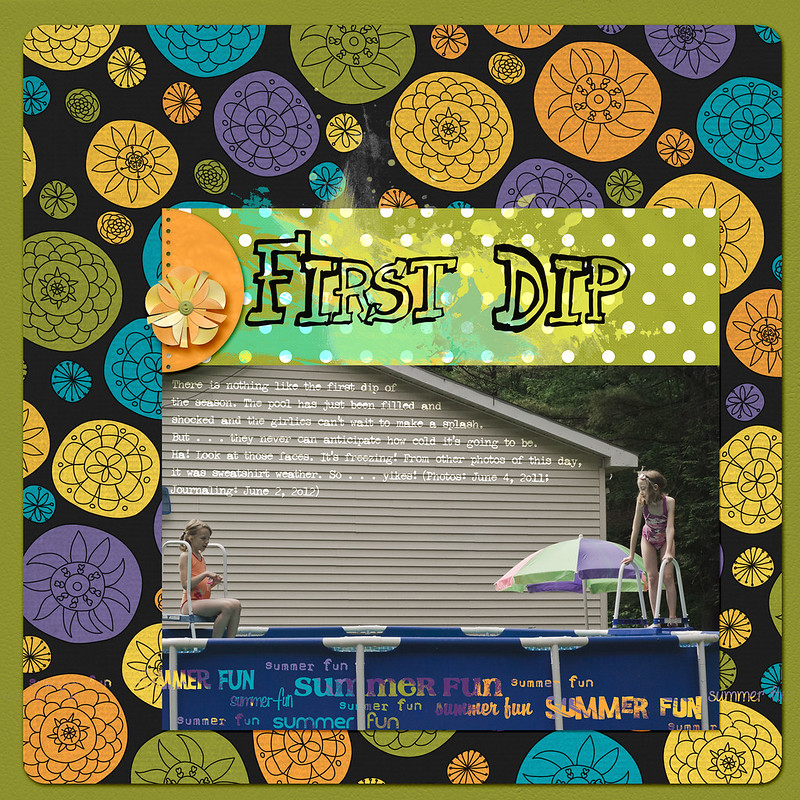
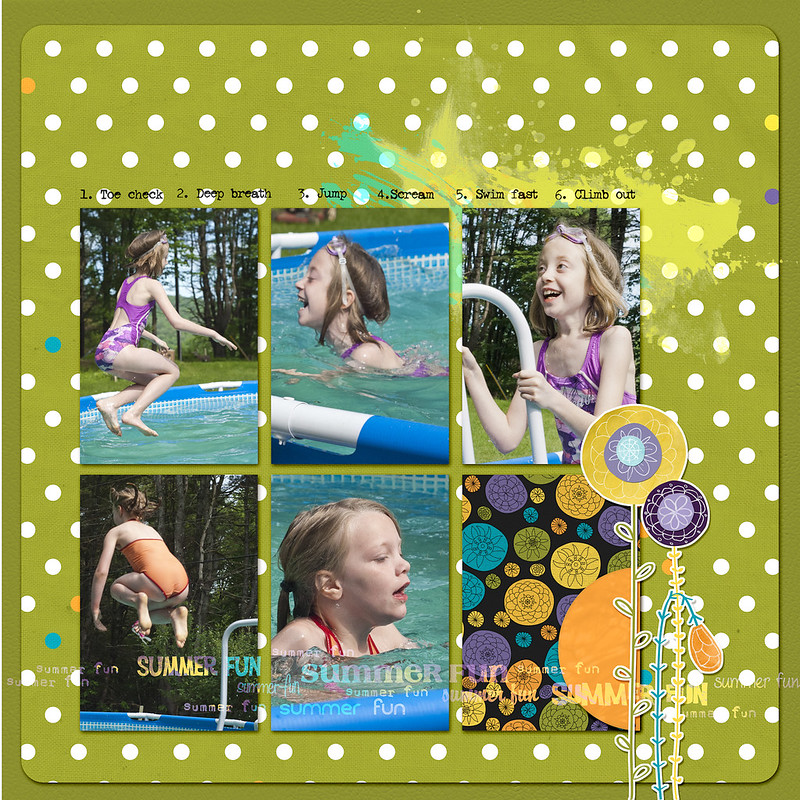
The second two pages could stand alone, but I created them to be companion pages. I just love the photos of the girls and their cousin playing at their Aunt Vickie’s. Heather’s stitching is fabulous and so realistic. I used the text tool to make the title art out of this great dragon-fly paper that is part of the kit, although it’s kind of hard to see that that is what it is. The dragonflies on the next page repeat the theme. The title art. Summer Blast, comes directly from the kit except that I applied the Multiply blend mode in PSE. This is my favorite of the four-I really love that photo mask and yellow and gray . . . WOW!
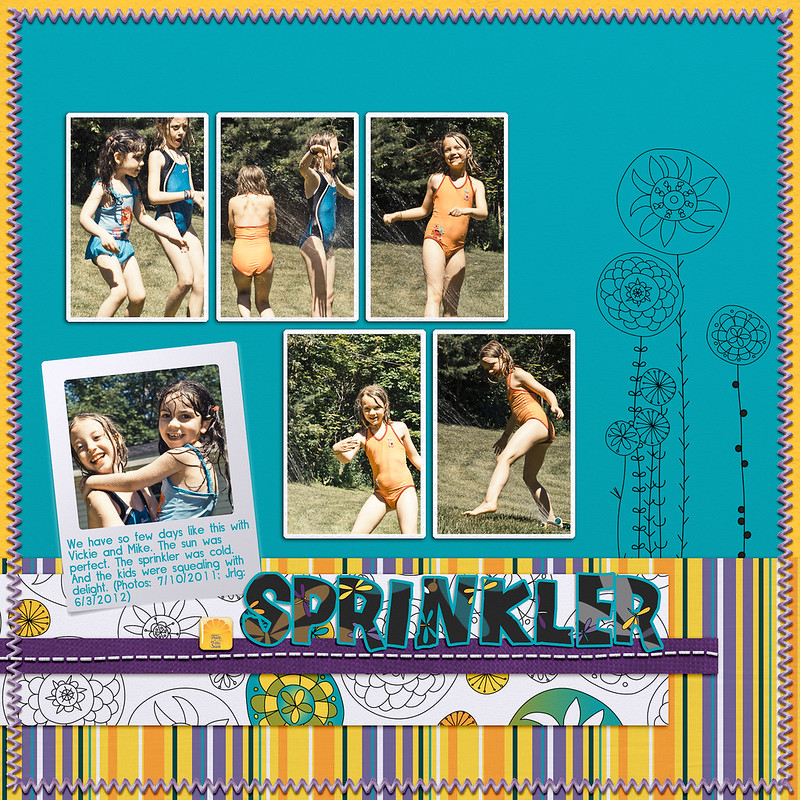
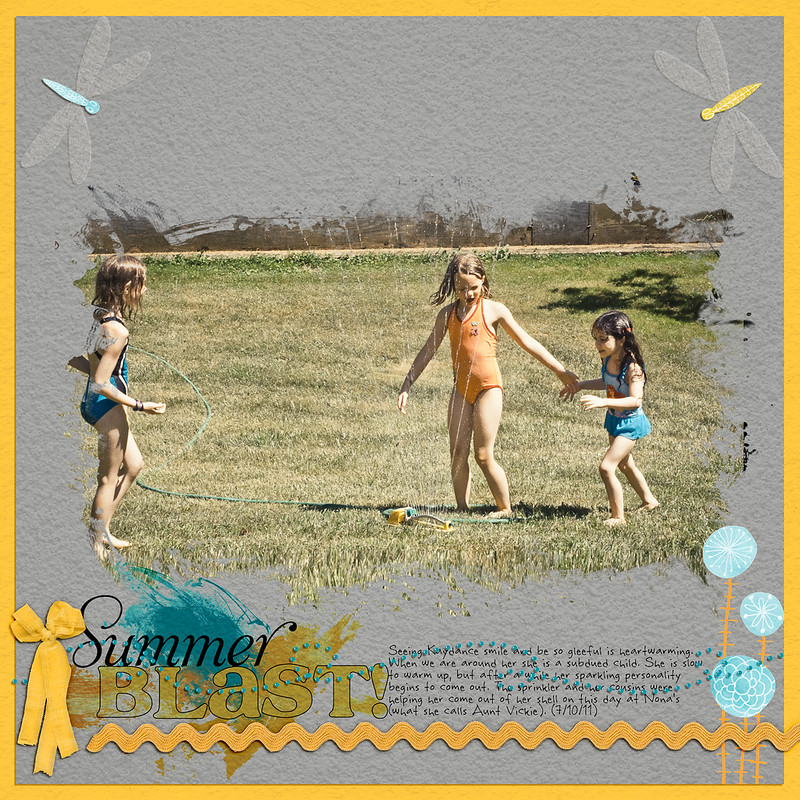
Sunday, January 15, 2012
January Take Twelve for Ella Publishing
This was digitally crafted using ViVa Artistry's "Life Composition" Kit.
This is one of two photography/scrapbooking projects that I am participating in this year to encourage more scrapbooking. Check out Take Twelve at Ella Publishing.
Saturday, December 31, 2011
Letting Go in 2012
I have been thinking a lot about how the blogs I read and the podcasts I listen to are enticing me to buy things and not inspiring me to scrapbook. I think that I want to spend more time and money on buying classes that help me take better pictures and scrapbook in more meaningful ways. I want to spend my money on inspiration and I have realized that inspiration is not in the form of products, but what you do with the products you have. I love looking through my supplies. I love buying supplies, but I want to use them up. Watching them turn old and dated is only ridden with guilt and buyers remorse.
Reflecting on some good things that have happened in 2011 I see that I have made a giant leap in my photo flow with Kayla Lamoureaux's Lightroom class and Finding Photo Flow. I have developed a system that I am working again that feels manageable and fun, not work so much. The digital scrapbooking supplies in Lightroom has bogged me down. I subscribe to two monthly digital kit programs and I have to stop. I am spending time converting and downloading and blah, blah, blah. Not playing with my stuff, but organizing, tagging, converting. I am going to stop that.
So for 2012 this is what I am going to do:
Cancel monthly subscriptions:
- Masterful Scrapbook Design (Cancelled 11/27/2011. I have several months worth of old content to keep me busy for all of 2012.)
- The Daily Digi (How can I support the show in a different way? Take their classes. Use the affiliate link. Email Katie about this. $82.50 per year)
- Little Dreamer Designs (I have this paid until 4/11/12. I am going to try to use these supplies and assess in April whether or not I renew. $50 per year.)
- Paperclipping??? (I have not been watching the videos. I don't participate online, but I do find Noell to be very inspiring and she has a similar philosophy about scrapping without a bunch of stuff. Only $28 a year, so I'll keep it.)
- Bigpictureclasses.com
- getitscrapped.com
- willowing.ning.com
- Jessicasprague.com
- Scrappers Guide
- Stuff to Scrap
- Delete all alphas?
Sunday, August 14, 2011
From Sketch or Template to Layout
Start in PSE8 to create template or find a template in Lightroom. I created a template based on Shimelle's Sketch.
Step 1: In PSE8, create template and save as a TIF file (with LZW compression) in my 2011 Digi Layouts folder (D drive) with a name descriptive of the template.
Go to Lightroom:
Step 1: Synch 2011 Digi Layout folder to I can see the template.
Step 2: Tag Template.
Step 3: Create Quick Collection using the template and then add photos, papers, and embellishments.
Step 4: Create Collection with Layout Name (Select All in Quick Collection and create with selected items.)
Step 5: Export Jpgs to the Digi Layouts folder using a subfolder that has the same name as the layout. (Can rename later if needed.)
Step 6: The tif files have to be dealt with separately. There is no easy way to do this. I have discovered that LR does not preserve transparency on export. The work around is time consuming if you are using elements from a variety of sources. You have to Go To File in Library, then you have to Open File Location. Copy the file and paste it into the layout folder. This is not so bad if you are working with elements from the same kit. Otherwise you can just select the tif files and choose "Edit In Photoshop Elements." You can't use Wendyzine's cool action if you do this, but it works. The action renames the layers with the file names which is helpful if you are posting with credits. Posting with credits makes digi scrapping a total pain in the rear end. I am not doing it anymore. I came up with a quick way to do it. Simply take a screen shot of the elements and papers in your Collection folder in LR. If the files have been named with designer and kit then tracking them should be no problem. Here are the credits.
Go to PSE
Step 1: Using Power Scrap It, create layout.
Monday, July 18, 2011
Handling Metadata Conflicts in Lightroom
Here's what I do:
- Upload pictures from card reader as normal using my Steps for Importing into LR for New Photos. If I have uploaded jpegs from the D60, I will wait to see which pics have the conflict. The conflict is random and does not always affect every picture. If the set has conflicts it's easier to do the following to all of them before doing anything else-even purging.
- Working in my daily folders, I will select all the photos and export them to a folder inside the yearly folder called "Metadata Conflicts."
- After that it is safe to remove the conflicted pictures from LR. I simply delete them from disk.
- Then I go to the yearly folder and, right clicking the folder icon, synchronize the folder to "import" the pics back to LR.
Friday, July 15, 2011
Lightroom 3 Photo Workflow: New Photos
I finally think I have nailed a good workflow for purging, rating, and keywording my photos. Here are the steps as I have them worked out today!!
FOR PHOTOS THAT ARE NOT IN LIGHTROOM ALREADY:
Step 1: Import from camera card to Lightroom to the annual folder.
- Use "Everyday Photos (jpegs)" or "Everyday Photos (NEF)" import preset which will add my copyright info to the metadata as well as create a separate subfolder by date for each set of photos in the current year folder.
- Rating System: 0-Stars: Nothing Special, but don't want it gone. 1-Star: Scrapworthy, supporting photos to the story; 2-Star: Focal-Point photos, Personality, or Relationship photos; 3-Star: Stunning, breathtaking, won't every get tired of looking at this one, SPECIAL
As I started to complete this process, I realized that not all my photos in my June folder were properly keyworded. I searched for empty keywords using the Text search tool and created daily subfolders inside my annual folder to remind me to process those photos. As of today, July 15th, I have 247 photos in June that need keyword checks. I guess I have should get started.
(PS I am going to track my progress on my iTouch with the "My Stats" app.)
UPDATE: Remember to keyword for "Relationships" when the photo shows that. For example, I have pics of us at the dinner table that should be keyworded with "Family Dinners" from "Everyday Life" and "My Family" from "Relationships."
Questions still lingering:
What's the best way to deal with photos already in the system?
What's the best way to check that my photos have the correct keywords?
What are the criteria I use to determine what photos to keep and what to purge? I have too many photos and want to pare down my collection.
What's the best sharing workflow?
When should I edit my pics? What pics should get edited?
Wednesday, June 29, 2011
Story Time Photo: "I used to be cool! See!"
Entering this photo story for the "Story Time" Photo Challenge at . . .

Sunday, May 8, 2011
Workshops on Organizing Photos and Scrapbooking Supplies
A little about the two online workshops:
Finally Get Organized
This workshop will get you started thinking about why you keep what you keep. I found the content applies to both paper and digital, including organizing your supplies. Everything is organized around how you use the product and there are a series of questions and prompts to get you thinking about that process. This is very similar to Wendy Smedley and Aby Garvey's method found in The Organized and Inspired Scrapbooker. Having to think again about my stuff, I have come to the conclusion that I have too much. In my scrapbook room I have started moving things from shelves into bins and giveaway boxes to make room for the things I truly love. I don't think of myself as being emotionally attached to my stuff, but I am beginning to realize I am wrong. I am stuck on: "Oh this is a really cool project I wanted to try. I have great ideas." "I will use this or give this away some day." "I have spent so much money, time, energy, on this, I have to keep it." The last one is the biggest impediment to purging anything. The workshop is very basic, but it might be just the thing to get you started.
Organizing Your Photographs
Liz is presenting this as a comprehensive year-long project to honor the process involved in organizing 30+ years of photographs. This is a very realistic approach to this project. I did a bunch of print organizing many years ago when I started scrapping. I have most of my prints organized chronologically in acid-free cardboard storage bins. I kept albums together that were archival-quality. There are two areas of my print organization system that don't work-how to handle incoming prints (photos I am given, inherited, or the few I choose to print) and how to handle the non-4X6 photos (I don't have storage in other sizes for those photos.). I am concentrating on my digital collection, implementing LOM-style organization, but I want to start digitizing my paper photos and that will require a system in place before I start scanning. (I have blogged about LOM here.
The first lesson of Organizing Your Photographs is called "Grouping and Gathering." Liz provides worksheets that will get you thinking about how you use your photos and why you have them in the first place. This is a different way of approaching this task to me and I like it. She has put a lot of time and thought into the content and I am really liking it. She presents the content in video and in PDF form so you hear and read it. The hugest thing is that this is FREE! Liz is giving away this content. You have to sign up for her newsletter to get the series. That's it.
Next, my system.


